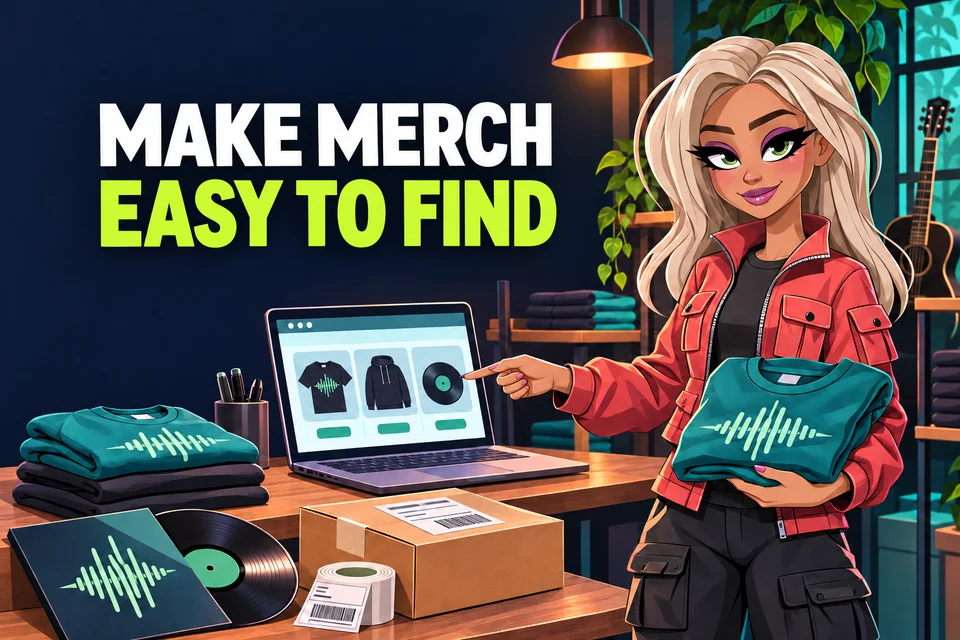
Spotify merch for artists can put a shirt, record or handmade item beside the music that inspired it. That can make the route from listener to customer shorter, but the Spotify listing is only one part of the buying journey. Your Shopify product, stock, images, release tags, delivery information and customer support still need to work together. Use these seven checks before you promote a product from your Spotify artist profile.
Spotify currently connects artist merch through Shopify. Artist teams manage the connection on the web, while Spotify provides extra places for eligible products to appear. These include the artist profile, release pages, the Now Playing view and the artist store page. Availability and features can change, so check the current controls on your own artist team before promising where an item will appear.
Spotify Support: connect Shopify to Spotify for Artists
1. Check the store and artist team
Start with the correct Shopify store and Spotify for Artists team. Spotify says one Shopify store can be linked per artist, so do not connect a test store or an old shop by mistake. In Spotify for Artists, open Merch and Events, choose Connect store and follow the Shopify setup. You will need to add Spotify as a sales channel, accept the terms and select the artist connected to the store.
Access matters too. Spotify's current role table says Admins and Editors can add and manage Shopify merch, while Readers cannot. If the button is missing, confirm the artist team and access level before rebuilding a product that already exists.
Spotify Support: Spotify for Artists access levels
2. Make the Shopify product complete first
Finish the product in Shopify before sending it to Spotify. Use an accurate name, clear static images, a useful description, the correct price and honest stock information. Explain sizes, materials or formats where they matter. Spotify says listed products must use plain text and static images, meet its merch guidelines and belong to the artist whose store is linked. Videos and rich formatting are not supported for the Spotify listing.
- Use a product title a listener can understand quickly.
- Show the actual item rather than a misleading mock-up.
- Check variants, stock and price before publication.
- State what the customer receives and who fulfils the order.
3. Publish it to the Spotify sales channel
Connecting the store does not automatically make every Shopify product visible on Spotify. Open the product in Shopify, manage its sales channels, select Spotify and save the change. Spotify currently allows a connected store to publish up to 250 merch items. Its guidance says a newly published item can take up to one hour to appear, so leave time for the listing to update before announcing it.
Spotify Support: publish Shopify merch to Spotify
4. Pin only the products that matter now
Spotify's current support page says you can pin up to five items to the top of the Merch tab. Use that space for products that are available, timely and easy to understand. A new album pressing, tour shirt or limited handmade item may deserve priority. A sold-out product or an old campaign should not occupy the first position just because it was pinned months ago. To change the order, Spotify says to unpin and re-pin items in the order you want.
You can also use Artist Pick to feature a merch item at the top of your profile. Treat that as a deliberate campaign choice and review it when the release, tour or stock situation changes.
Read: Spotify Artist Pick guide
5. Tag products to the right releases
Tagging connects an item with an album, EP or single. Spotify says tagged merch can appear on the release page and in the Now Playing view while fans stream songs from that release. If you tag an album, the item can show for every track on it. Search for the correct release rather than choosing the first title that looks similar. Manual tags take priority over Spotify's automatic title matching.
The connection should make sense. A vinyl edition belongs with its album. A tour shirt might suit the current campaign rather than every release in the catalogue. Useful tagging helps a listener understand why the product is being shown.
Spotify Support: pin and tag merch
6. Test the full customer journey
Do not stop when the product appears on Spotify. Open the public listing as a listener, follow it to the store and test the important steps on a phone. Check the image crop, title, price, variants, postage information and checkout route. If you serve several countries, confirm where you can actually deliver and whether your wording creates a false expectation about cost or timing.
Spotify makes clear that the artist or merch partner is responsible for fulfilment and customer support, not Spotify. Put a working contact route and realistic delivery information in the store. Keep proof that you have permission to use the artwork, photographs, names and logos printed on the item.
Spotify Support: merch guidelines
7. Promote the item with a clear reason
A product link needs context. Show what the item is, why it connects to the music and whether there is a real stock or date limit. Avoid fake urgency and vague claims about quality. A short packing clip, a close view of the design or a photograph from the merch table can give listeners useful information before they click.
Keep the campaign joined up. Your Spotify profile, social post and Shopify page should use the same product name and accurate images. If the item supports a release, include it in the release plan rather than announcing it as an unrelated extra.
Read: Spotify Promo Cards for Artists
Read: Four-week music release timeline
A simple final merch check
- Correct Shopify store and Spotify artist team.
- Complete product, price, variants and stock.
- Spotify sales channel selected and saved.
- Useful pins and accurate release tags.
- Public mobile journey and checkout tested.
- Fulfilment, support and rights confirmed.
Spotify merch works best when the product and the music feel connected. Publish carefully, tag the right release and test the journey from the listener's screen to the final order. A clear, accurate shop is more useful than a large catalogue that is difficult to trust.
A merch handover note
Artist and connected Shopify store: [confirmed]
Product and variant: [name, size or format]
Available stock: [real quantity or stock process]
Release tag and pin order: [checked]
Price and delivery information: [checked in the shop]
Fulfilment owner and support contact: [assigned]
Mobile listing and checkout review: [date]
Review trigger: [stock, price, tour or release change]
A fictional EP campaign might tag its vinyl edition to that EP and pin the available pressing first. A general logo shirt does not need tags on every recording. Recheck the public page after changing stock or variants.
If you also sell through Bandcamp, reconcile the actual stock process before listing the same limited batch in two shops.